 SmartLabs Docs
Installing SmartTUBE app on Hisense TV manually
This guide provides step-by-step instructions for manually installing the SmartTUBE app on Hisense Smart TVs running VIDAA OS.
Prerequisites
Before installing the SmartTUBE app on your TV, ensure you meet the following requirements:
- An internet-connected VIDAA TV
- Your VIDAA TV is manufactured or upgraded in 2021 or later (Firmware version > L0901), or verify compatibility using the platform support table below by checking the SoC and VIDAA OS Version shown in DevKit > System Info:
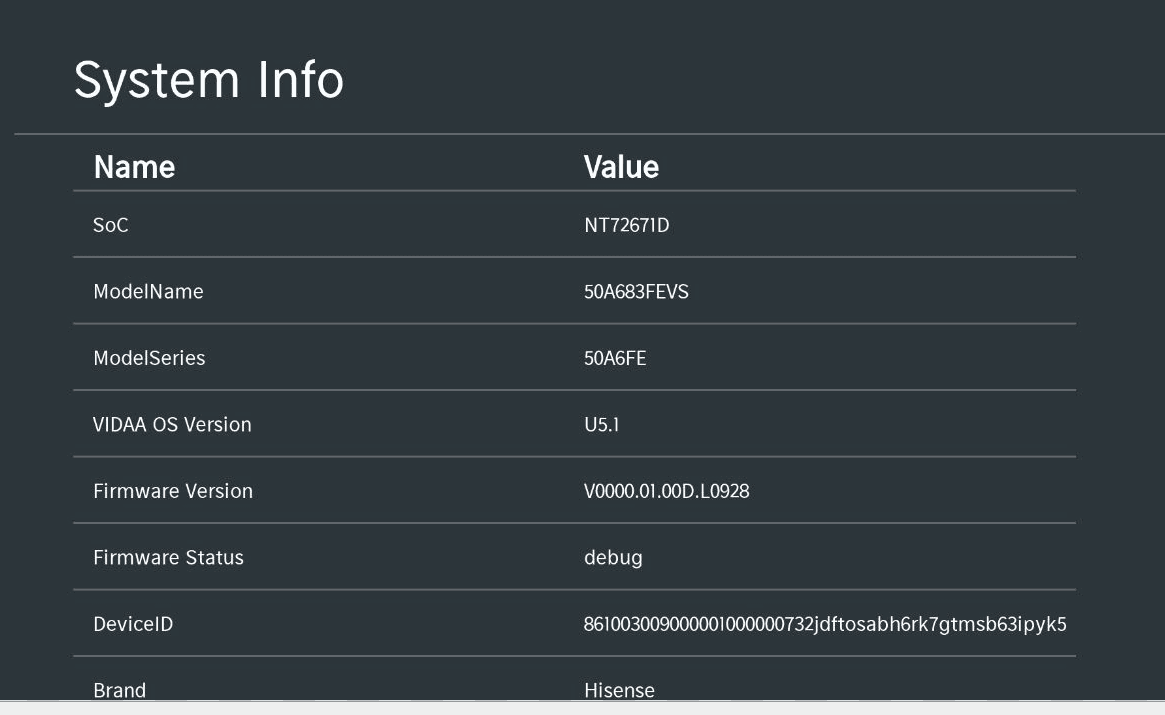
Platform support table
| SoC & OS version | DevKit Support |
|---|---|
| MT9900 U6 | Supported |
| NT72671D U5 | Supported |
| MT9602 U4 | Supported |
| MT9602 U5 | Supported |
| MSD6886 U4 | Supported |
| MSD6886 U3 | Not Supported |
| MSD6586 U2.5 | Not Supported |
| MT5659 U2.5 | Not Supported |
| MT5658 U2.5 | Not Supported |
1. Install VIDAA DevKit
DevKit is an application designed for developing and debugging web applications, and for installing third-party applications on TVs running VIDAA OS. DevKit is not installed by default and must be enabled following these steps:
- Open the App Store in VIDAA Home
- After entering the App Store, move the focus to the search button (do not press the OK button)
- Press the following sequence on your remote control:
2775379. An installation success message will appear in the App Store - Open More Apps in VIDAA Home. The DevKit app will appear at the bottom
More Apps may be called My Apps or All Apps on other platforms.
- Once DevKit is installed, proceed to the next steps
2. Get the secure code
To install applications on your TV, you need an individual secure code. Obtain it as follows:
- Open DevKit
- Note the wired MAC address and Device Code displayed on the home screen
- Contact your VIDAA PEM manager and provide this information
- Wait for the response containing your secure code
3. Verify secure code
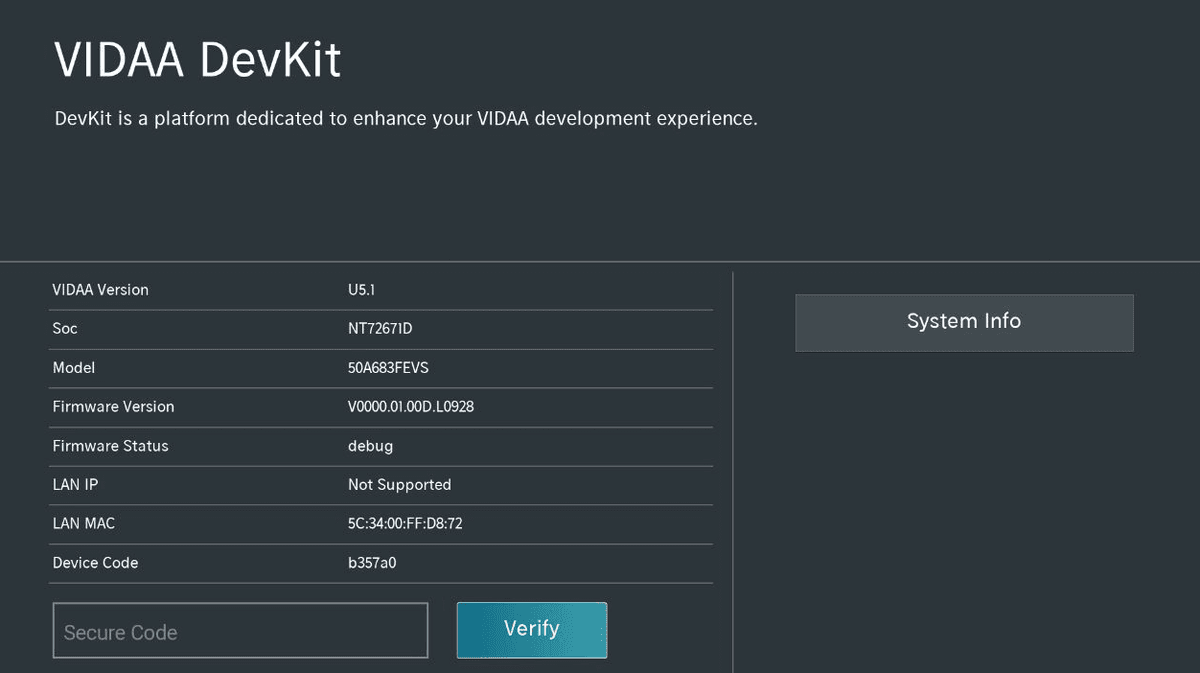
- Open DevKit. A page with key information about your TV system will appear:
-
Platform U4/U5: Enter your secure code in the input box and click the Verify button
-
Platform U6: Copy the
securecode.keyfile to a USB flash drive and insert it into your TV. Open the DevKit app and click the Verify button to authorize. -
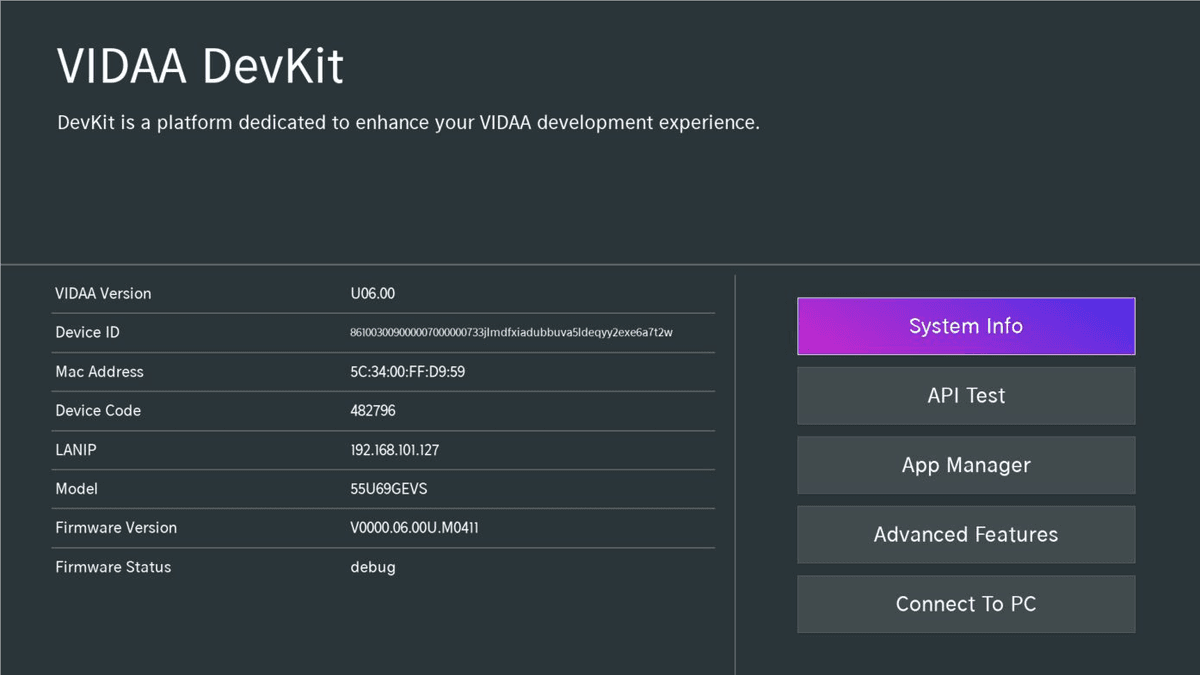
If the secure code validates successfully, a menu similar to the following will appear:
4. Install the app
Your TV is now ready for SmartTUBE app installation.
- Click App Manager
- In App Manager, complete the following fields:
- App Name: For example,
SmartLabs Lime - Icon URL: URL to the application icon
- App URL: For example,
https://demo.smartlabs.tv/for the demo SmartTUBE Lime app
- App Name: For example,
If you are a SmartLabs customer, you can find the App URL on the Software Release Notes page in your SmartLabs Wiki space.
To request access to the demo app, contact sales@smartlabs.tv.
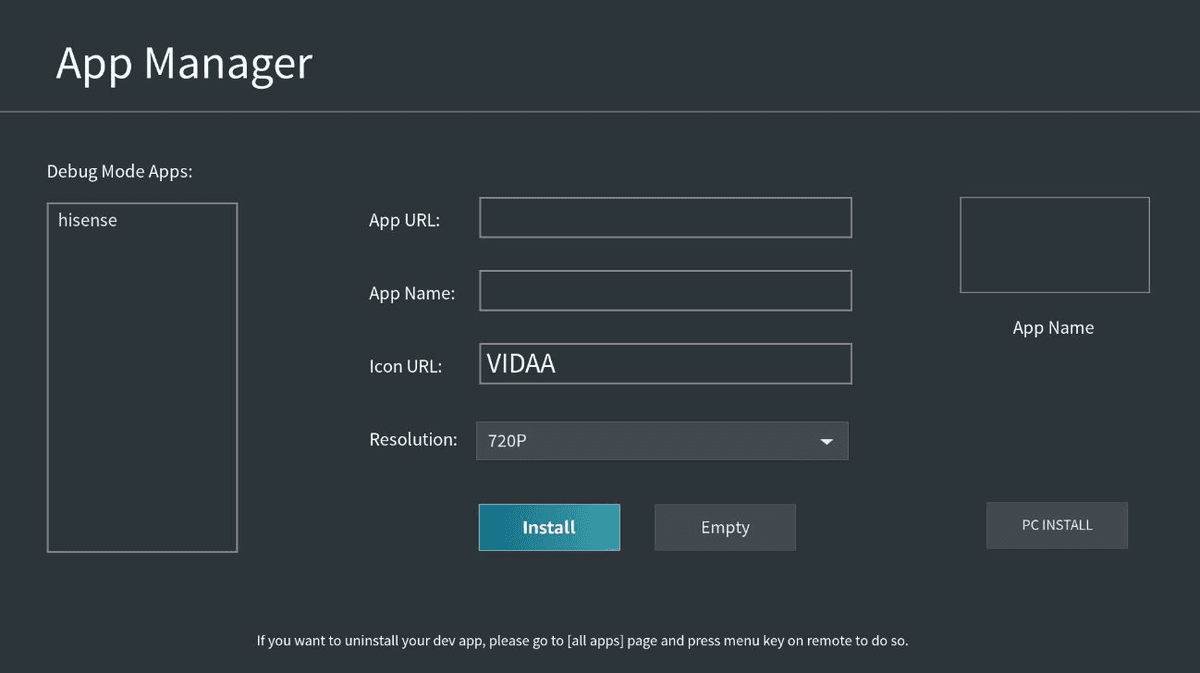
If you do not specify an Icon URL, the application icon will display as a transparent rectangle with the specified App Name.
- Select the Resolution for the application
- Click Install
Alternative method for Hisense TVs produced before 2021
If your TV was produced before 2021 and does not support the recommended method shown above according to the Platform Support Table, follow these instructions:
- Launch a web browser from your TV's application list
- Enter
hisense://debugin the address bar - Complete the following fields:
- AppName: For example,
SmartLabs Lime - App URL: For example,
https://demo.smartlabs.tv/for the demo SmartTUBE Lime app
- AppName: For example,
If you are a SmartLabs customer, you can find the App URL on the Software Release Notes page in your SmartLabs Wiki space.
To request access to the demo app, contact sales@smartlabs.tv.
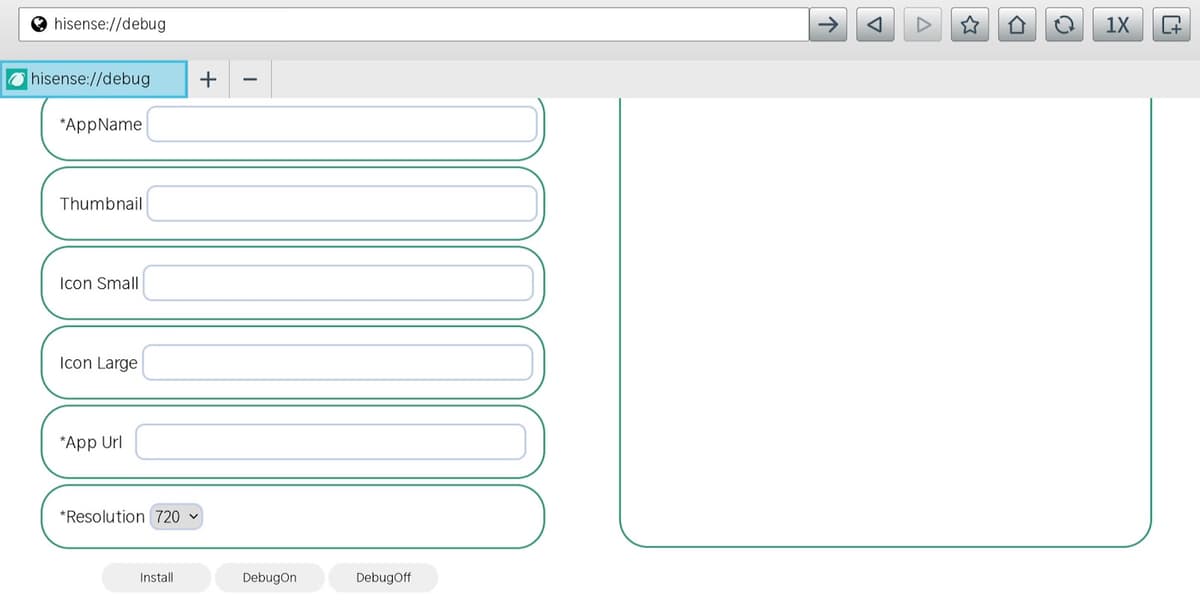
- Enter the application icon URL in the Thumbnail field. If you do not specify this, the application icon will display as a transparent rectangle with the specified AppName
- Click Install
- Turn off the TV using the remote control or power button
- Turn on the TV again
- Locate the installed app in your application list and launch it