SmartLabs Docs
Installing SmartTUBE app on Samsung TV manually
The SmartTUBE app supports all model years of Samsung Tizen Smart TVs available for publishing on the Samsung app store portal.
For installation, prepare a clean USB 2.0 drive.
Installation from USB drive
-
Obtain the SmartTUBE app package:
- If you are a SmartLabs customer, access your SmartLabs Wiki space
- To request the demo app Lime, contact the Sales Team for the latest version
-
Download the app package for Samsung Smart TVs from the Software Release Notes page
-
Create a
userwidgetdirectory in the root directory of your USB drive -
Extract 2 files (
.tmgand.license) from the package into theuserwidgetdirectory -
Connect the USB drive to your Samsung Smart TV
-
A notification indicating that the app installation has started should appear on the screen
-
After successful installation, a "Done" notification will appear at the top
Troubleshooting installation failures
If installation fails, check for these common issues:
Directory and file issues:
- Incorrect spelling of the
userwidgetdirectory - Files
.tmgand.licenseare not located directly in theuserwidgetdirectory (they may be in a nested subdirectory) - Space in the
.tmgfilename causes the error:[User App] * *.tmg, invalid app package for security check failed[]
TV configuration issues:
- The app is already installed from Tizen Studio. Delete the existing installation before reinstalling
- Insufficient free space in the TV's memory. Delete other apps to free up space
- The TV cannot install the app from a USB 3.0 drive or an excessively large drive. Use a USB 2.0 drive instead
USB drive issues:
- USB drive is in read-only mode. This causes the error:
-7: [User App] *.tmg, invalid app package for security check failed[-7]
General troubleshooting:
- If installation fails without an obvious cause, try resetting the TV to factory settings
- If the reset does not resolve the issue, wait for all default apps to install, then retry the installation from the USB drive
Re-signing the application
Each release of the SmartTUBE app for Samsung Tizen TVs is published on the customer's SmartLabs Wiki in two variants:
- Production build:
xxx.wgt - Test build (installed manually from USB drive):
xxx-userwidget.zip
Test builds are signed with a validity period of 30 days. To use the test build beyond this period, you must re-sign it.
The Samsung App Store provides a tool to re-sign a production build and convert it into a test build:
-
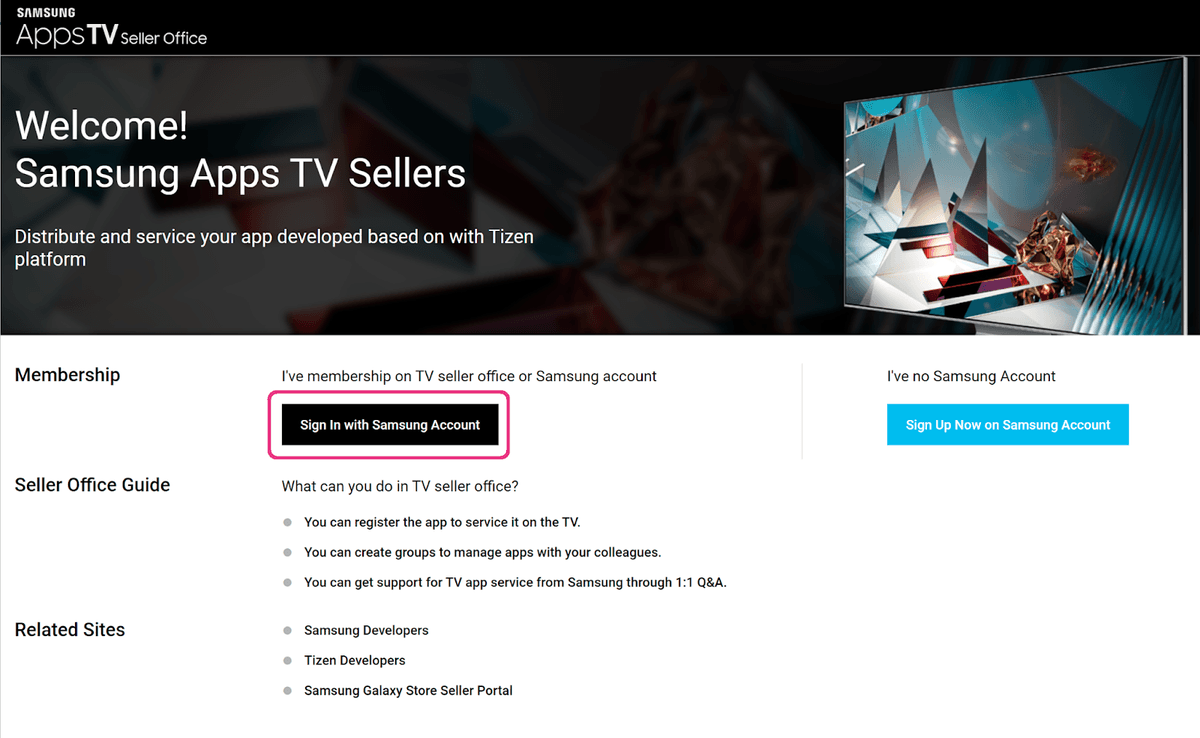
Sign in to the Samsung Apps TV Seller Office using your Samsung Partner account credentials:
-
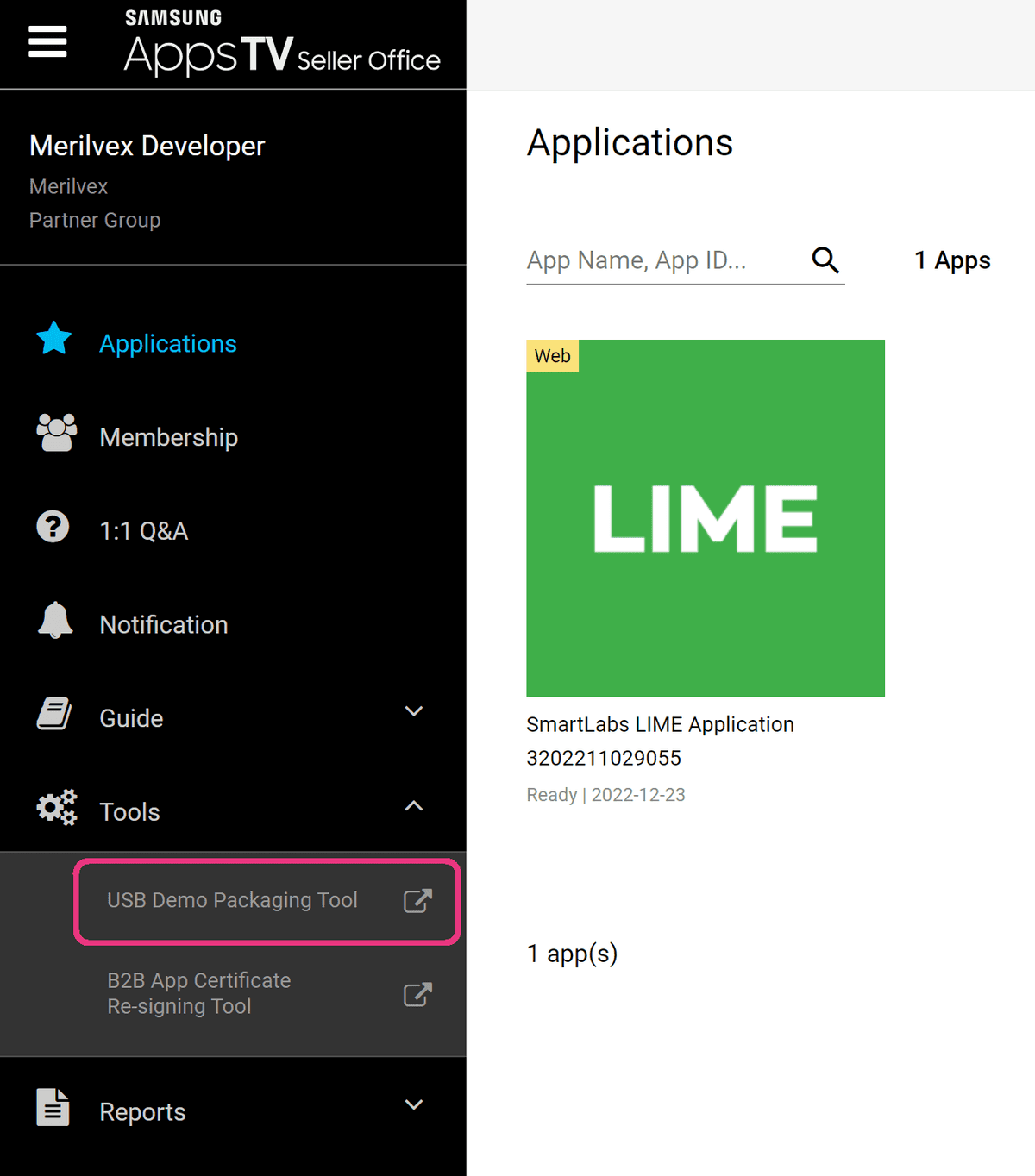
In your profile, select USB Demo Packaging Tool:
-
Check the Agree checkbox and upload the
xxx.wgtfile: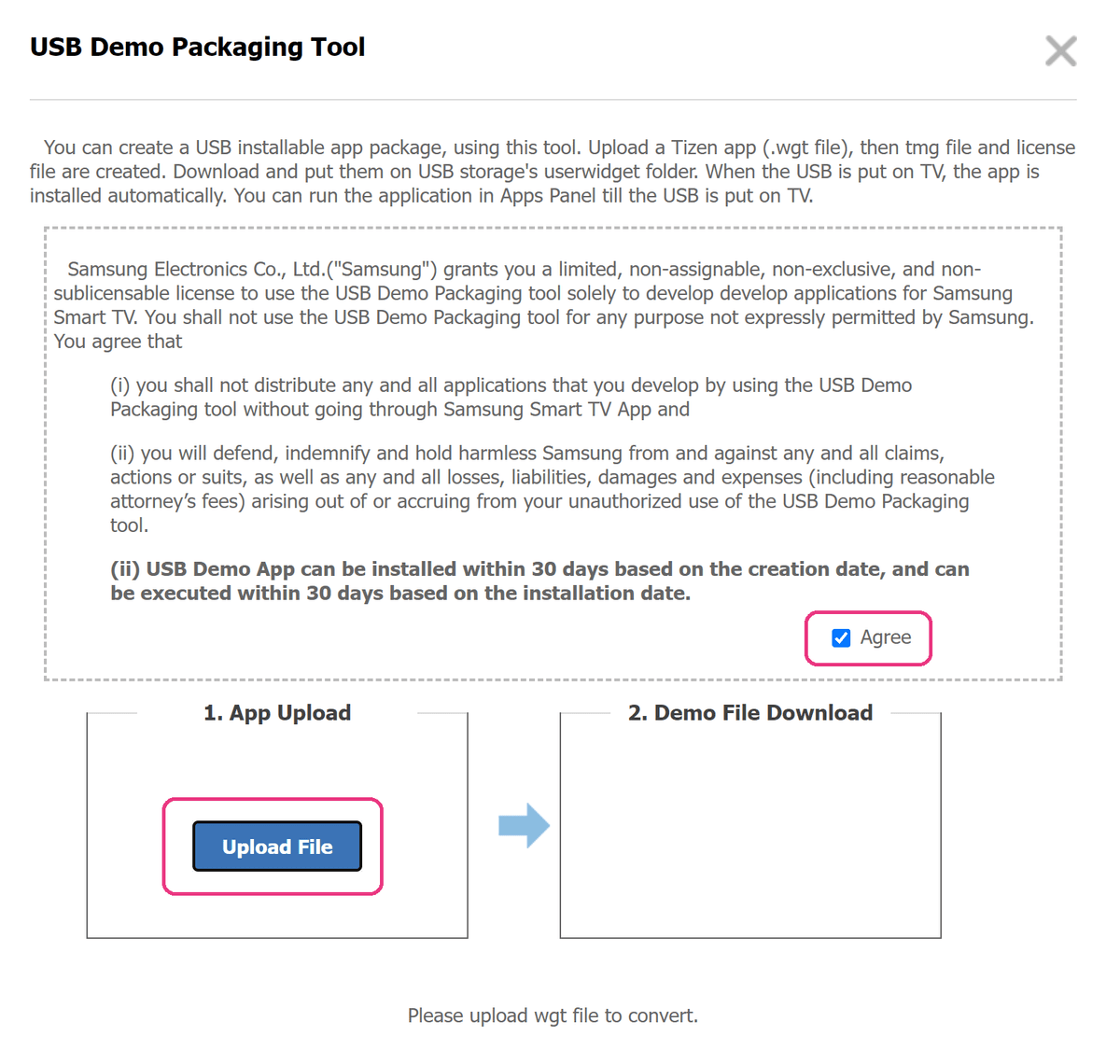
-
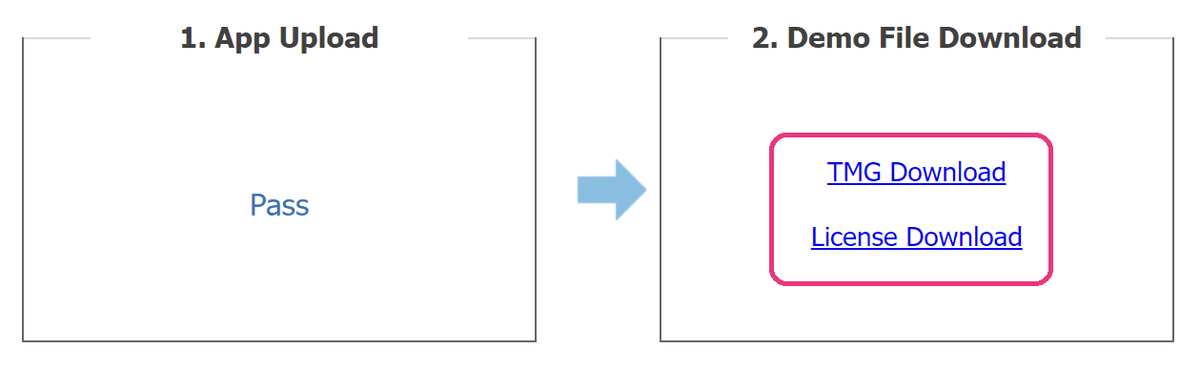
Download the
.tmgand.licensefiles using the links that appear: